
Photos with Notes on iPhone: Keep the Context with the Picture
You photograph a shelf in a shop. Two weeks later, you find the picture but cannot remember whether it was too wide, too expensive or exactly what you wanted. The photo usually does not contain that answer.
A photo with a short note keeps the scene and your reason for saving it together. Lognote Pro lets you add images to your note timeline. The accompanying words can be as brief as something you would actually type while out and about.
What to write beside a photo
Start with the information the picture cannot supply. For furniture, that might be a measurement. For a project, the exact location. For a trip, something you want to remember next time.
- “Shelf by the entrance. 82 cm wide, measure at home.”
- “Study, wall beside the window. Paint looks warmer in the evening.”
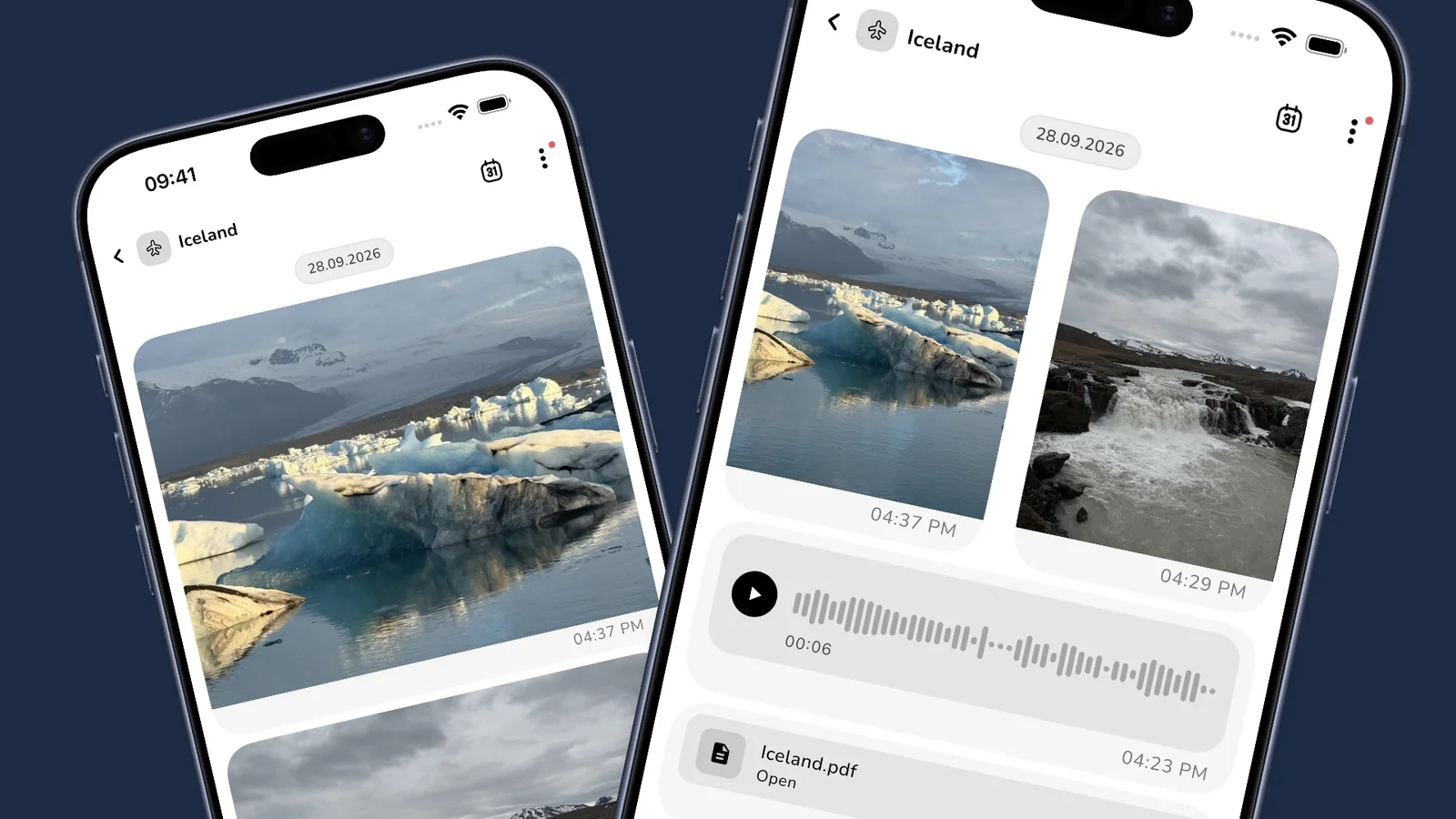
- “Waterfall past the car park. Bring a rain jacket next time.”
These are fictional examples. The point is to record what you might forget, rather than describe everything already visible in the image.
A small template to copy
Three lines cover many situations. Leave out anything you do not need:
- Place or object: …
- What matters about this picture: …
- Next thing to do or check: …
A filled example could be: “Living room, shelf recess / 82 cm between door and wall / check depth at home”. When you measure again, add a new entry. The original observation and the later answer then remain easy to distinguish.
Add a photo in Lognote
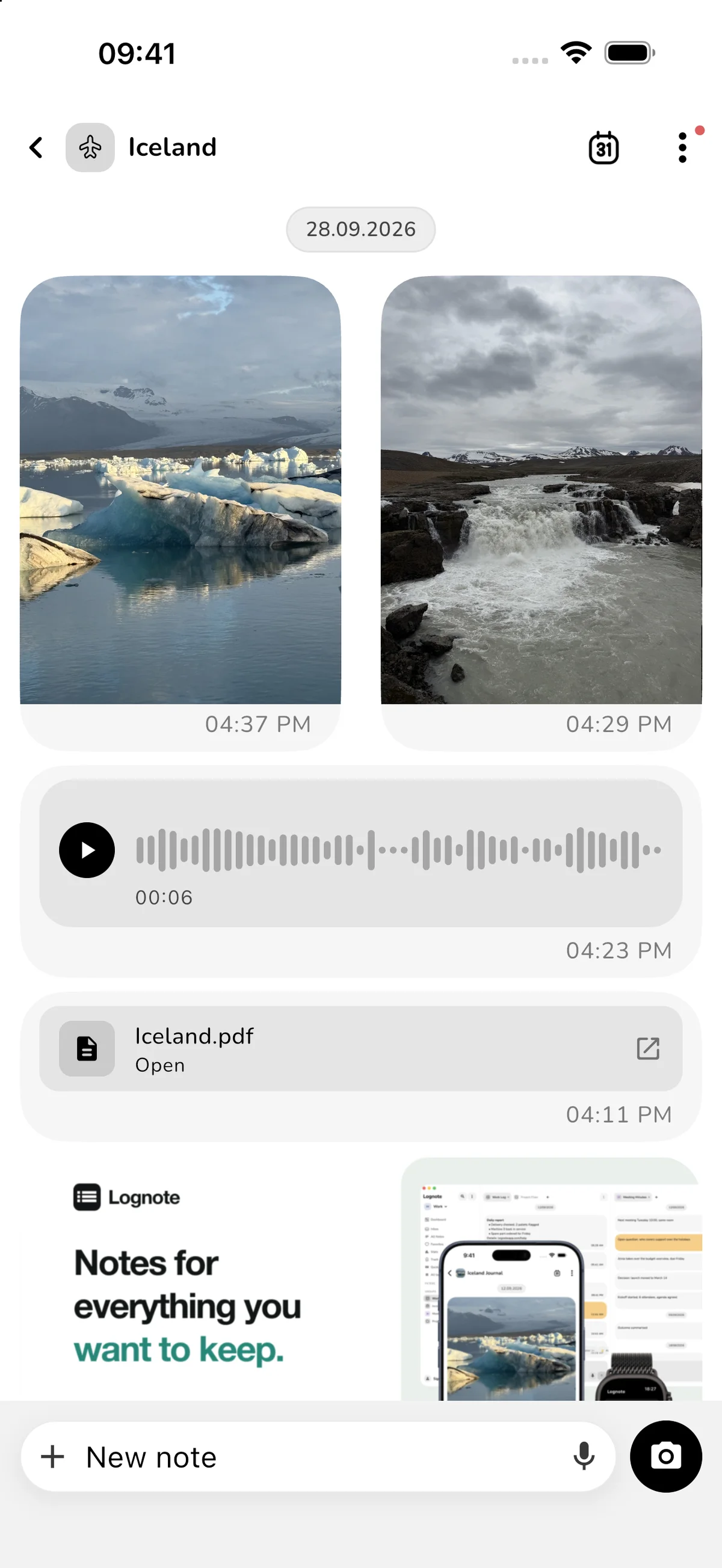
Open the relevant group, such as “Home”, and choose Photos from the attachment options. On iPhone and iPad, you can also use Camera. For one selected photo, you can add a caption. Save the picture and your description, then check the resulting entry in the group.
Selecting several images creates separate notes. If each picture shows something different, give each entry its own context. “Picture 1” or “see above” is not very helpful when you later open just one search result.
The photo help article explains the controls. The illustration in this article shows a travel group with sample media; the same workflow works for your everyday and project pictures.
Find the pictures later
Give each group a clear purpose. “Home” can be enough for a small project. Separate unrelated projects when the collection becomes difficult to browse. You can also open Group info and choose Photos to browse images within that group.
Put distinctive words such as “shelf recess” in the note text so you can search for them. Do not rely on finding an unlabeled photo by its subject. A recurring hashtag such as #home can help too; see our guide to hashtags.
A timestamp places the note in your timeline. It is not automatically the capture time of a photo imported later. If that distinction matters, write the actual photo date in your description.
Turn individual pictures into a useful record
For a project, the second picture can matter as much as the first. Photograph a comparable view and explain what changed: “Shelf assembled, door opens fully”. You will not have to guess whether the open question was resolved.
A casual photo collection does not need a formal report. If you want to share part of it later, select the relevant entries and check the output. Our export format guide explains the options. For personal trip memories, read the separate travel journal article.
What is free and when you need Pro
Text notes are free. Photos and other media attachments require Lognote Pro. Local notes do not require a Lognote account; personal Cloud Sync is a separate Pro feature that uses an account. See pricing for details.
Try one picture whose context you might otherwise lose. Add the sentence that will make it useful later. Download Lognote.