
Shared notes for small projects: a simple way to stay organized

You are organizing a workshop with a friend. The room is confirmed over the phone, the supply list is in a message, and only one of you remembers the new start time. A shared note group can keep that information together. To make it useful later, the entries need enough context.
Give each group a specific purpose
Start with a name like “Saturday workshop” rather than “Team.” Keep that group for this event: confirmations, changes, open questions and brief outcomes.
Keep personal drafts in a separate group. That way, the other person does not have to work out whether every half-formed thought is an agreed plan. For separating larger areas, see the guide to work and personal workspaces.
Set up sharing in Lognote
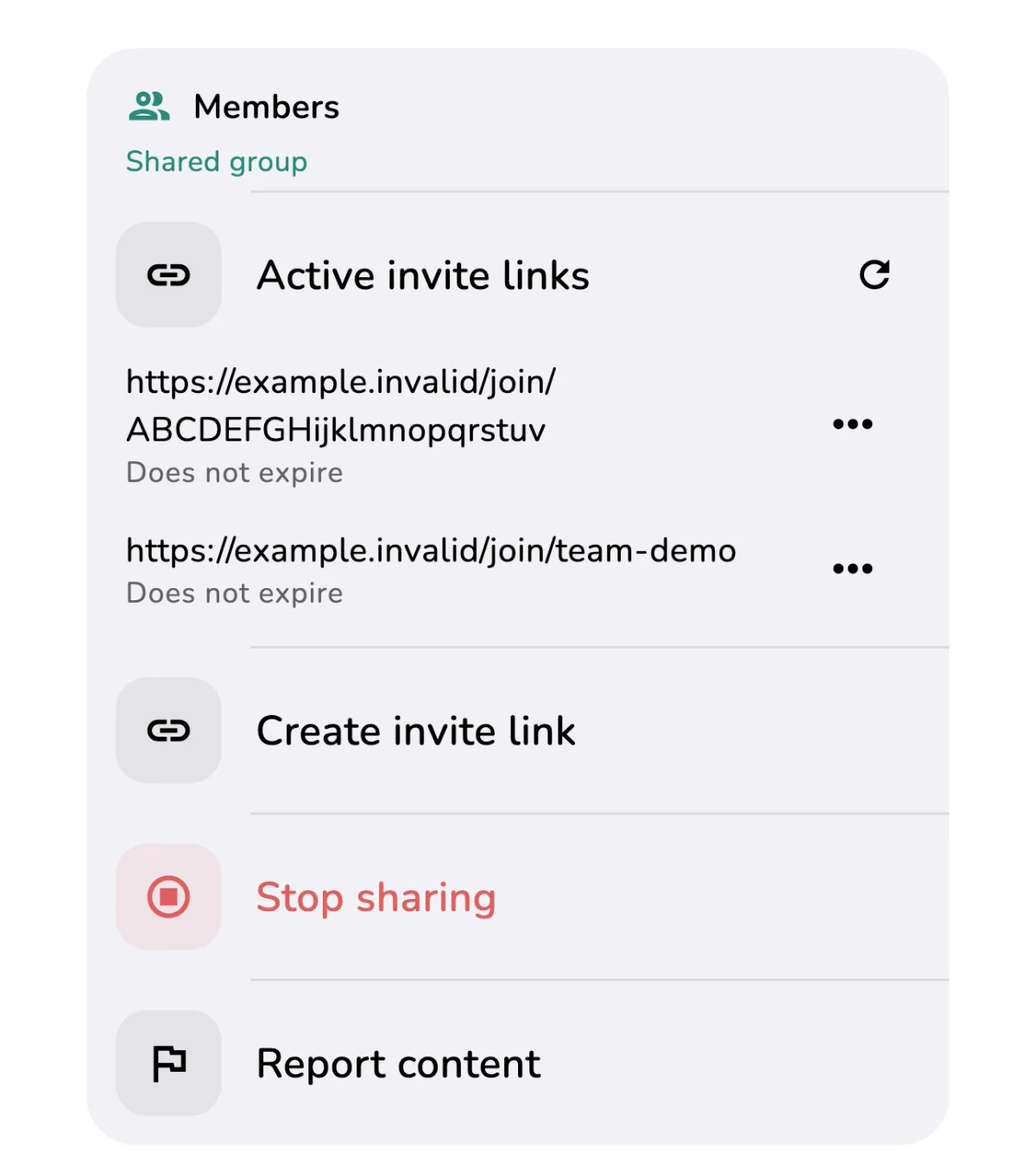
The group owner enables sharing and creates an invitation link under Group info > Members. The others open the invitation in Lognote, sign in and join. Send the link directly to the intended participants.
The owner needs Lognote Pro to share and manage their own group. Invited members can join and contribute text notes for free. Anyone adding photos, files or voice notes needs their own Pro access. A Lognote account is required for collaboration.
The members view also lets you find active invitation links, share them again or revoke individual links. Check there whether an invitation is still valid.
Keep entries short, but include the context
Each entry does not need to be a formal report. It needs to tell the others what happened and whether anything is still outstanding. This fictional workshop example shows what that can look like:
- 09:10 · Room confirmed. Access from 9 on Saturday, Lea has the key.
- 10:25 · 12 people now, not 10. Still need two chairs.
- 11:05 · Sam’s bringing the extra chairs. Sorted.
- 14:40 · Start moved to 10:30. Lea will send the new time around.
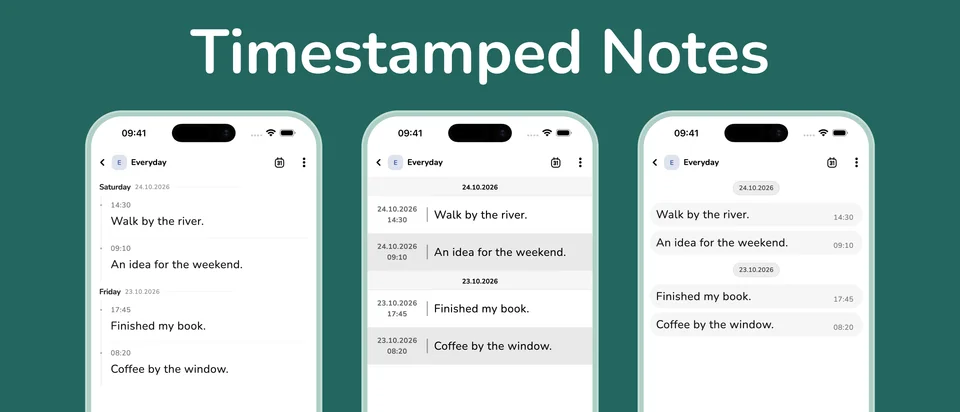
The times illustrate the sequence here. Lognote gives each entry a timestamp. Include names and agreed times in the text when they matter. “Done” on its own is not much help when you read back later.
Record changes as a clear new update
If the start time changes, add an explicit note: “Starting at 10:30 now, not 10.” Someone should be able to understand the current plan without knowing what was said in the last conversation.
Group members can edit their own notes; other members’ notes are read-only for them. The owner can moderate notes in the group. Treat it as a collection of clear individual contributions. Putting a name in the text records your agreement; it does not automatically assign a task.
Read back before the next meeting
Review recent entries and add the latest status for anything still open. If the same question comes up again, write the answer so it will still make sense next week.
Lognote 6.5.1 syncs shared notes faster and catches up more reliably after connection drops. The list also stays steadier while you read. With photos and files, the text may be visible before the attachment has finished transferring, so check the sync status.
Start with one project and a few people. Download Lognote, set up the group and record three real agreements. That is enough to see whether the approach works for you.